Configuring Junos RADIUS Authentication – The Quick Answer
The shortest answer to configuring RADIUS authentication is to do the following:
- Ensure there is a route to the RADIUS server
- Configure the network device to use the authentication server
- Configure the network device with local role accounts
- Configure the authentication order on the network device
This can be achieved with the below commands, replacing <variable> with appropriate values.
set system radius-server <IP Address> secret <RADIUS-Secret>
set system authentication-order radius
set system login user remote class <User-Class>
A word of warning, once RADIUS authentication is enabled, all CLI access to the device will use it. This includes both SSH and console sessions. As long as the device has access to the RADIUS server, it will not use the local user accounts based on the authentication-order configured above.
Read on for a more detailed discussion.
Why Do We Use Centralized Authentication
In most network environments, we use centralized authentication to control users logging in to network devices. This means when a new person requires access to the network devices, we define their account once on an authentication platform, rather than having to create a new account on all the network devices.
This simplifies user administration, as there is one place to add or remove users. It is also possible to connect the authentication platform to another source of information. For example, having the RADIUS server query Active Directory to authenticate users.
With each user having their own account, we can also easily identify who issued what command by viewing the log files.
An Oversimplified RADIUS Review
RADIUS (Remote Access Dial-In User Service) is a protocol that provides AAA services – Authentication, Authorization, and Accounting. We’re mainly going to look at Authentication for the moment.
For authenticating CLI users, when a user logs into a network device, it will send an Access-Request to the RADIUS server. The server will respond with an Access-Reject or Access-Accept and some additional RADIUS Attributes. The Access-Accept may also include Vendor Specific Attributes or VSAs.
How Does This Work
To use RADIUS to authenticate users trying to log in to a Junos device, several steps need to be taken
- Configure an authentication server to answer requests. In this case, we are using FreeRADIUS installed on an Ubuntu server.
- Configure the network device to use the authentication server
- Configure the network device with local role accounts
- Configure the authentication order on the network device
- If needed, configure a route on the network device for the RADIUS server address or management network. In the examples that follow, the RADIUS server is on the same network as the management interface of the router.
Lab Topology
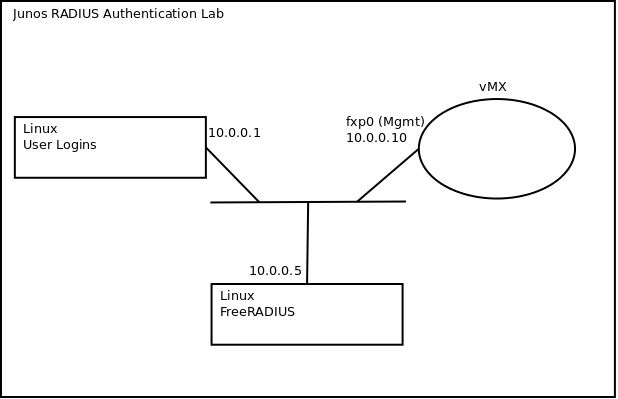
For this post, the network topology is as follows:
1 vMX with interface fxp0 (management interface) with an address of 10.0.0.10
1 Ubuntu server running FreeRADIUS with an address of 10.0.0.5
1 Ubuntu server acting as a jump host, with an address of 10.0.0.1
Basic Implementation
This is a very basic implementation to get us started. We will add to this in later sections.
RADIUS Server Configuration
In our example, we have installed a new Ubuntu server, and installed FreeRADIUS using the command ‘apt install freeradius’.
We now need to define the RADIUS client, which is the device that will send authentication requests to the radius server. In our case, it is the vMX instance. Then we will define the user account.
The configuration files for FreeRADIUS in my installation can be found in the /etc/freeradius/3.0 directory. We add the following to the end of the clients.conf file
client vMX {
	ipaddr = 10.0.0.10
	secret = vMXRadSecret
}
To create the user, I edited the ‘users’ file. I added a new user named ‘user1’ after the commented out test user bob.
Note: This example uses clear text passwords to make the examples more transparent. Anyone with read access to the configuration file will be able to read the passwords stored within it. You should therefore take the security of your authentication server very seriously, even in non-production environments.
#bob Cleartext-Password := "hello"
# Reply-Message := "Hello, %{User-Name}"
#

user1 Cleartext-Password := "user1pass"
After editing the configuration files, we need to restart the service. On Ubuntu I ran ‘systemctl restart freeradius.service’ as root.
Junos Network Device Configuration
The following is the basic configuration for a Junos device to authenticate against a RADIUS server.
[edit]
lab@vMX-1# set system radius-server 10.0.0.5 secret vMXRadSecret

[edit]
lab@vMX-1# set system authentication-order radius

[edit]
lab@vMX-1# set system login user remote class read-only

[edit]
lab@vMX-1# show | compare
[edit system login]
+ user remote {
+ class read-only;
+ }
[edit system]
+ authentication-order radius;
+ radius-server {
+ 10.0.0.5 secret "$9$1LLElMY2oaUiAp0IRhKvaJGDi.5T3/A0GDA0"; ## SECRET-DATA
+ }

[edit]
lab@vMX-1# commit and-quit
commit complete
Exiting configuration mode

lab@vMX-1>
In the above config, we define the radius server and ‘secret’ so the device knows what RADIUS server to talk to. We define the authentication-order as radius so the device will authenticate CLI users via RADIUS, and we define the ‘remote’ role account. This post has more details about Junos authentication-order and its implications.
The ‘role account’ is a normal local user account without a password specified. It is basically the effective user account of a RADIUS user when they log in. Users do not login with the username of the role account, instead it is assigned to their RADIUS account.
By default, if the Access-Accept message returned by the RADIUS server does not include the Juniper VSA for Juniper-Local-User-Name, Junos tries to use the ‘remote’ role account.
Testing RADIUS authentication
Now that we have configured both the RADIUS server and the router, we can try logging in with the ‘user1’ account.
All going well, your user1 account should log in, and you will see a message similar to the following in the messages log
Dec 28 03:00:49 vMX-1 sshd[12868]: Accepted keyboard-interactive/pam for user1 from 10.0.0.1 port 41888 ssh2We can also run a ‘show cli authorization’ to see some further details. Note the difference between the ‘Current user’ and ‘login’ fields.
user1@vMX-1> show cli authorization
Current user: 'remote' login: 'user1' class 'read-only'
Permissions:
view -- Can view current values and statistics
Individual command authorization:
Allow regular expression: none
Deny regular expression: none
Allow configuration regular expression: none
Deny configuration regular expression: none

user1@vMX-1>
To look into further detail, while a user is logging in we can also perform a ‘monitor traffic’ on the fxp0 interface matching on the IP address of the RADIUS server. Here you see the Access-Request and Access-Accept messages.
lab@vMX-1> monitor traffic interface fxp0 matching "host 10.0.0.5" no-resolve size 1500 detail
Address resolution is OFF.
Listening on fxp0, capture size 1500 bytes

03:11:43.147142 Out IP (tos 0x0, ttl 64, id 48238, offset 0, flags [none], proto: UDP (17), length: 96) 10.0.0.10.62247 > 10.0.0.5.1812: RADIUS, length: 68
	Access Request (1), id: 0x92, Authenticator: df2894303e0a5f481a82f5a4bdadaea4
 Username Attribute (1), length: 7, Value: user1
 Password Attribute (2), length: 18, Value:
 NAS ID Attribute (32), length: 7, Value: vMX-1
 Calling Station Attribute (31), length: 10, Value: 10.0.0.1
 NAS IP Address Attribute (4), length: 6, Value: 10.0.0.10
03:11:43.148026 In IP (tos 0x0, ttl 64, id 50165, offset 0, flags [none], proto: UDP (17), length: 48) 10.0.0.5.1812 > 10.0.0.10.62247: RADIUS, length: 20
	Access Accept (2), id: 0x92, Authenticator: 5fb1bfa47062a31dedd33e61594fa475
^C
152 packets received by filter
0 packets dropped by kernel

lab@vMX-1>
What Happens If ‘Remote” User Not Defined?
If the ‘remote’ user is not defined, then the RADIUS user will not be able to log into the device. If we remove the ‘remote’ account, we can see what that looks like.
lab@vMX-1> edit
Entering configuration mode

[edit]
lab@vMX-1# delete system login user remote

[edit]
lab@vMX-1# show | compare
[edit system login]
- user remote {
- uid 2002;
- class read-only;
- }

[edit]
lab@vMX-1# commit and-quit
commit complete
Exiting configuration mode

lab@vMX-1>
From a user perspective, the login appears to be rejected and the connection is closed by the remote host.
The ‘monitor traffic’ command still shows an Access-Accept coming back from the RADIUS Server
lab@vMX-1> monitor traffic interface fxp0 matching "host 10.0.0.5" no-resolve size 1500 detail
Address resolution is OFF.
Listening on fxp0, capture size 1500 bytes

03:18:52.304735 Out IP (tos 0x0, ttl 64, id 62755, offset 0, flags [none], proto: UDP (17), length: 96) 10.0.0.10.52391 > 10.0.0.5.1812: RADIUS, length: 68
	Access Request (1), id: 0x5e, Authenticator: bb783ba7677e30374897232f82079527
 Username Attribute (1), length: 7, Value: user1
 Password Attribute (2), length: 18, Value:
 NAS ID Attribute (32), length: 7, Value: vMX-1
 Calling Station Attribute (31), length: 10, Value: 10.0.0.1
 NAS IP Address Attribute (4), length: 6, Value: 10.0.0.10
03:18:52.305654 In IP (tos 0x0, ttl 64, id 62170, offset 0, flags [none], proto: UDP (17), length: 48) 10.0.0.5.1812 > 10.0.0.10.52391: RADIUS, length: 20
	Access Accept (2), id: 0x5e, Authenticator: 720c9bbd81127657d8ce22e804f77546
^C
71 packets received by filter
0 packets dropped by kernel

lab@vMX-1>
The clue is in the messages log file:
lab@vMX-1> show log messages | last 6
Dec 28 03:18:52 vMX-1 sshd[14223]: PAM_USER_LOCK_USER_AUTHEN_NO_LOGIN: User remote is authenticated successfully but no logical login-id configured.
Dec 28 03:18:52 vMX-1 sshd[14221]: error: PAM: user account has expired for user1 from 10.0.0.1
Dec 28 03:18:52 vMX-1 sshd: SSHD_LOGIN_FAILED: Login failed for user 'user1' from host '10.0.0.1'
Dec 28 03:18:52 vMX-1 sshd: SSHD_LOGIN_FAILED: Login failed for user 'user1' from host '10.0.0.1'
Dec 28 03:18:57 vMX-1 sshd[14221]: fatal: monitor_read: unpermitted request 104
Dec 28 03:18:57 vMX-1 inetd[8660]: /usr/sbin/sshd[14221]: exited, status 255

lab@vMX-1>
From the first log entry, we can see that the user ‘remote’ is authenticated but does not have an account configured and therefore the user can’t log in.
What Happens If The RADIUS Server Is Not Available?
To test what happens when the RADIUS server is unavailable, we can stop the service from running on the Linux server.
root@lab1:/etc/freeradius/3.0# systemctl stop freeradius.service
root@lab1:/etc/freeradius/3.0# systemctl status freeradius.service
<<output omitted>>
Now let’s try logging in to the vMX as user1 again.
From a user perspective, we see the following. The lines with Password: are where the vMX is trying to use RADIUS and when it fails, the lines with Local password: are where it is trying to authenticate user1 against its local user accounts. Because there is no local user account for ‘user1’, this user is effectively locked out of the device until access to the RADIUS server is restored.
:~$ ssh [email protected]
Password:
Local password:
Password:
Local password:
Password:
Local password:
Received disconnect from 10.0.0.10 port 22:2: Too many password failures for user1
Connection to 10.0.0.10 closed by remote host.
Connection to 10.0.0.10 closed.
If you monitor the traffic on the fxp0 interface, you would see several Access-Request messages being sent to the RADIUS server at 10.0.0.5, and icmp unreachables coming back due to the RADIUS service being stopped. Similar to the below:
lab@vMX-1> monitor traffic interface fxp0 matching "host 10.0.0.5" no-resolve size 1500 detail
Address resolution is OFF.
Listening on fxp0, capture size 1500 bytes

03:28:59.488122 Out IP (tos 0x0, ttl 64, id 17694, offset 0, flags [none], proto: UDP (17), length: 96) 10.0.0.10.60146 > 10.0.0.5.1812: RADIUS, length: 68
	Access Request (1), id: 0xe6, Authenticator: 4bdb8c869e9ce089320dba832faea160
 Username Attribute (1), length: 7, Value: user1
 Password Attribute (2), length: 18, Value:
 NAS ID Attribute (32), length: 7, Value: vMX-1
 Calling Station Attribute (31), length: 10, Value: 10.0.0.1
 NAS IP Address Attribute (4), length: 6, Value: 10.0.0.10
03:28:59.488919 In IP (tos 0xc0, ttl 64, id 46144, offset 0, flags [none], proto: ICMP (1), length: 124) 10.0.0.5 > 10.0.0.10: ICMP 10.0.0.5 udp port 1812 unreachable, length 104
	IP (tos 0x0, ttl 64, id 17694, offset 0, flags [none], proto: UDP (17), length: 96) 10.0.0.10.60146 > 10.0.0.5.1812: RADIUS, length: 68
	Access Request (1), id: 0xe6, Authenticator: 4bdb8c869e9ce089320dba832faea160
 Username Attribute (1), length: 7, Value: user1
 Password Attribute (2), length: 18, Value:
 NAS ID Attribute (32), length: 7, Value: vMX-1
 Calling Station Attribute (31), length: 10, Value: 10.0.0.1
 NAS IP Address Attribute (4), length: 6, Value: 10.0.0.10
A quick look at the log files will also confirm that access to the RADIUS server was problematic
Dec 28 03:29:08 vMX-1 sshd: PAM_RADIUS_SEND_REQ_FAIL: Sending radius request failed with error (No valid RADIUS responses received).
Dec 28 03:29:08 vMX-1 sshd: PAM_UNIX_AUTH_SERV_PROB: Detected authentication server problem.
Dec 28 03:29:08 vMX-1 sshd: PAM_UNIX_TRY_LOC_PASSWD_AUTH: will attempt local password authentication.
Dec 28 03:29:27 vMX-1 sshd: PAM_UNIX_LOC_PASSWD_AUTH: local password authentication of user 'user1', failed
Dec 28 03:29:27 vMX-1 sshd[14696]: error: PAM: authentication error for user1 from 10.0.0.1
Dec 28 03:29:27 vMX-1 sshd: SSHD_LOGIN_FAILED: Login failed for user 'user1' from host '10.0.0.1'
Dec 28 03:29:40 vMX-1 sshd: PAM_RADIUS_SEND_REQ_FAIL: Sending radius request failed with error (No valid RADIUS responses received).
Dec 28 03:29:40 vMX-1 sshd: PAM_UNIX_AUTH_SERV_PROB: Detected authentication server problem.
Dec 28 03:29:40 vMX-1 sshd: PAM_UNIX_TRY_LOC_PASSWD_AUTH: will attempt local password authentication.
Dec 28 03:29:44 vMX-1 sshd: PAM_UNIX_LOC_PASSWD_AUTH: local password authentication of user 'user1', failed
Dec 28 03:29:44 vMX-1 sshd[14696]: error: PAM: authentication error for user1 from 10.0.0.1
Dec 28 03:29:44 vMX-1 sshd: SSHD_LOGIN_FAILED: Login failed for user 'user1' from host '10.0.0.1'
Dec 28 03:30:05 vMX-1 sshd: PAM_RADIUS_SEND_REQ_FAIL: Sending radius request failed with error (No valid RADIUS responses received).
Dec 28 03:30:05 vMX-1 sshd: PAM_UNIX_AUTH_SERV_PROB: Detected authentication server problem.
Dec 28 03:30:05 vMX-1 sshd: PAM_UNIX_TRY_LOC_PASSWD_AUTH: will attempt local password authentication.
Dec 28 03:30:09 vMX-1 sshd: PAM_UNIX_LOC_PASSWD_AUTH: local password authentication of user 'user1', failed
Dec 28 03:30:09 vMX-1 sshd[14696]: error: PAM: authentication error for user1 from 10.0.0.1
Dec 28 03:30:09 vMX-1 sshd: SSHD_LOGIN_FAILED: Login failed for user 'user1' from host '10.0.0.1'
Dec 28 03:30:24 vMX-1 sshd: SSHD_LOGIN_ATTEMPTS_THRESHOLD: Threshold for unsuccessful authentication attempts (3) reached by user 'user1'
Dec 28 03:30:24 vMX-1 sshd[14697]: Disconnecting authenticating user user1 10.0.0.1 port 41900: Too many password failures for user1
Dec 28 03:30:24 vMX-1 sshd[14696]: Disconnecting authenticating user user1 10.0.0.1 port 41900: Too many password failures for user1 [preauth]
Dec 28 03:30:24 vMX-1 inetd[8660]: /usr/sbin/sshd[14696]: exited, status 255
What Happens If There Is Both A RADIUS And A Local Account?
Since we already have the RADIUS server disabled, we will create a local account for ‘user1’ and see how that changes the behavior. To make it interesting, we will use a different password and put the user in a different authorization class. The local ‘user1’ account is in the operator class and has a password of ‘localuser1pass’
lab@vMX-1> edit
Entering configuration mode

[edit]
lab@vMX-1# set system login user user1 class operator authentication plain-text-password
New password:
Retype new password:

[edit]
lab@vMX-1# commit and-quit
commit complete
Exiting configuration mode

lab@vMX-1>
Now let’s try logging in. Again, the Password: line is trying to authenticate against the RADIUS server while Local password: authenticates against the local account on the device.
If we look at the ‘show cli authorization’ output we can see the ‘Current user’ is ‘user1’, but when it was using RADIUS earlier, it was the ‘remote’ role account.
~$ ssh [email protected]
Password:
Local password:
Last login: Wed Dec 28 03:11:43 2022 from 10.0.0.1
--- JUNOS 20.4R3-S2.6 Kernel 64-bit JNPR-11.0-20211117.c779bdc_buil
user1@vMX-1> show cli authorization
Current user: 'user1 ' class 'operator'
Permissions:
 clear -- Can clear learned network info
 network -- Can access the network
 reset -- Can reset/restart interfaces and daemons
 trace -- Can view trace file settings
 view -- Can view current values and statistics
Individual command authorization:
 Allow regular expression: none
 Deny regular expression: none
 Allow configuration regular expression: none
 Deny configuration regular expression: none

user1@vMX-1>
Next, we can restart the RADIUS service on the RADIUS server with ‘systemctl start freeradius.service’ and try logging in again. Note that the user authenticated with the RADIUS password, but was given the authorization of their local user account.
:~$ ssh [email protected]
Password:
Last login: Wed Dec 28 04:04:48 2022 from 10.0.0.1
--- JUNOS 20.4R3-S2.6 Kernel 64-bit JNPR-11.0-20211117.c779bdc_buil
user1@vMX-1> show cli authorization
Current user: 'user1 ' class 'operator'
Permissions:
 clear -- Can clear learned network info
 network -- Can access the network
 reset -- Can reset/restart interfaces and daemons
 trace -- Can view trace file settings
 view -- Can view current values and statistics
Individual command authorization:
 Allow regular expression: none
 Deny regular expression: none
 Allow configuration regular expression: none
 Deny configuration regular expression: none

user1@vMX-1>
Let us try removing the local account
lab@vMX-1> edit
Entering configuration mode

[edit]
lab@vMX-1# delete system login user user1

[edit]
lab@vMX-1# show | compare
[edit system login]
- user user1 {
- uid 2001;
- class operator;
- authentication {
- encrypted-password "$6$znBZojUz$i/Ge827l.x6UsO88tUrE95K29.O3gTrrMmTQHzEEdku7xtjdQGZeRv5svQxHBbZ2em7cMAUbgdbsNxdBu.KkU."; ## SECRET-DATA
- }
- }

[edit]
lab@vMX-1# commit and-quit
commit complete
Exiting configuration mode

lab@vMX-1>
And now logging in as ‘user1’ again. Note how the authorization has changed back to using the ‘remote’ user and a class of ‘read-only’.
:~$ ssh [email protected]
Password:
--- JUNOS 20.4R3-S2.6 Kernel 64-bit JNPR-11.0-20211117.c779bdc_buil
user1@vMX-1> show cli authorization
Current user: 'remote' login: 'user1' class 'read-only'
Permissions:
 view -- Can view current values and statistics
Individual command authorization:
 Allow regular expression: none
 Deny regular expression: none
 Allow configuration regular expression: none
 Deny configuration regular expression: none

user1@vMX-1>
Advanced Implementation
Now that we have the basic configuration for RADIUS authentication covered, let’s look at some of the more advanced configurations.
We’ll start by creating additional users on the RADIUS server and adding additional attributes to control what the users can do. The RADIUS ‘users’ file now has the following lines in it:
#bob Cleartext-Password := "hello"
# Reply-Message := "Hello, %{User-Name}"
#

user1 Cleartext-Password := "user1pass"
 Juniper-Local-User-Name := "rad-readonly"

user2 Cleartext-Password := "user2pass"
 Juniper-Local-User-Name := "rad-readonly",
 Juniper-Allow-Commands := "ping"

user3 Cleartext-Password := "user3pass"
 Juniper-Local-User-Name := "rad-ops"

user4 Cleartext-Password := "user4pass"
 Juniper-Local-User-Name := "rad-ops",
 Juniper-Deny-Commands := "ping"
Note that user2 and user4 have a comma at the end of their second line, which is important and should not be missed. Once updated, you’ll need to restart the RADIUS service again with ‘systemctl restart freeradius.service’
What If RADIUS Returns A Local Username Not On The Device
Since we’ve updated our RADIUS users, but have not yet created the role accounts on the vMX, what happens when a user tries to log in?
From the monitoring of the fxp0 interface, it looks good. We now have a new VSA on the Access-Accept that comes back
lab@vMX-1> monitor traffic interface fxp0 matching "host 10.0.0.5" no-resolve size 1500 detail
Address resolution is OFF.
Listening on fxp0, capture size 1500 bytes

04:47:09.338560 Out IP (tos 0x0, ttl 64, id 44278, offset 0, flags [none], proto: UDP (17), length: 96) 10.0.0.10.58232 > 10.0.0.5.1812: RADIUS, length: 68
	Access Request (1), id: 0xa5, Authenticator: 92118b4418cb0b20f62a216886eef888
 Username Attribute (1), length: 7, Value: user1
 Password Attribute (2), length: 18, Value:
 NAS ID Attribute (32), length: 7, Value: vMX-1
 Calling Station Attribute (31), length: 10, Value: 10.0.0.1
 NAS IP Address Attribute (4), length: 6, Value: 10.0.0.10
04:47:09.339705 In IP (tos 0x0, ttl 64, id 21879, offset 0, flags [none], proto: UDP (17), length: 68) 10.0.0.5.1812 > 10.0.0.10.58232: RADIUS, length: 40
	Access Accept (2), id: 0xa5, Authenticator: dc42887ed4ca48739a7e42d7bc6953df
 Vendor Specific Attribute (26), length: 20, Value: Vendor: Juniper Networks (2636)
04:47:14.528836 In arp who-has 10.0.0.10 tell 10.0.0.5
04:47:14.528877 Out arp reply 10.0.0.10 is-at 50:00:00:01:00:00
^C
158 packets received by filter
0 packets dropped by kernel

lab@vMX-1>
However, because the role account does not exist, the user still has the ‘remote’ authorization.
:~$ ssh [email protected]
Password:
--- JUNOS 20.4R3-S2.6 Kernel 64-bit JNPR-11.0-20211117.c779bdc_buil
user1@vMX-1> show cli authorization
Current user: 'remote' login: 'user1' class 'read-only'
Permissions:
 view -- Can view current values and statistics
Individual command authorization:
 Allow regular expression: none
 Deny regular expression: none
 Allow configuration regular expression: none
 Deny configuration regular expression: none

user1@vMX-1>
There does not seem to be much in the log file to suggest anything has gone wrong
lab@vMX-1> show log messages | last 10
<<output omitted>>
Dec 28 04:47:09 vMX-1 sshd[16953]: Accepted keyboard-interactive/pam for user1 from 10.0.0.1 port 41926 ssh2
RADIUS Login with VSAs Set
Since we’ve tested without the local role accounts defined, let’s now add them in and see what happens. Note that by default the class read-only should not have access to the ping command, whereas the operator class should have access to ping.
lab@vMX-1>edit
Entering configuration mode

[edit]
lab@vMX-1# set system login user rad-readonly class read-only

[edit]
lab@vMX-1# set system login user rad-ops class operator

[edit]
lab@vMX-1# show | compare
[edit system login]
+ user rad-ops {
+ class operator;
+ }
+ user rad-readonly {
+ class read-only;
+ }

[edit]
lab@vMX-1# commit and-quit
commit complete
Exiting configuration mode

lab@vMX-1>
Logging in with user1, we can see the ‘Current user’ set to rad-readonly, and that this account can’t run the ping command.
:~$ ssh [email protected]
Password:
--- JUNOS 20.4R3-S2.6 Kernel 64-bit JNPR-11.0-20211117.c779bdc_buil
user1@vMX-1> show cli authorization
Current user: 'rad-readonly' login: 'user1' class 'read-only'
Permissions:
 view -- Can view current values and statistics
Individual command authorization:
 Allow regular expression: none
 Deny regular expression: none
 Allow configuration regular expression: none
 Deny configuration regular expression: none

user1@vMX-1> p?
No valid completions
user1@vMX-1> ping
 ^
unknown command.
user1@vMX-1>
If we now log in with user2 we have the same ‘Current user’ of rad-readonly, but under individual command authorization ping has been allowed. And indeed, user 2 can successfully run the ping command.
:~$ ssh [email protected]
Password:
--- JUNOS 20.4R3-S2.6 Kernel 64-bit JNPR-11.0-20211117.c779bdc_buil
user2@vMX-1> show cli authorization
Current user: 'rad-readonly' login: 'user2' class 'read-only'
Permissions:
 view -- Can view current values and statistics
Individual command authorization:
 Allow regular expression: (ping)
 Deny regular expression: none
 Allow configuration regular expression: none
 Deny configuration regular expression: none

user2@vMX-1> p?
Possible completions:
 ping Ping remote target
user2@vMX-1> ping 10.0.0.5 count 2
PING 10.0.0.5 (10.0.0.5): 56 data bytes
64 bytes from 10.0.0.5: icmp_seq=0 ttl=64 time=0.813 ms
64 bytes from 10.0.0.5: icmp_seq=1 ttl=64 time=0.756 ms

--- 10.0.0.5 ping statistics ---
2 packets transmitted, 2 packets received, 0% packet loss
round-trip min/avg/max/stddev = 0.756/0.784/0.813/0.029 ms

user2@vMX-1>
User3 has the operator class, which does allow ping, as can be seen below.
:~$ ssh [email protected]
Password:
--- JUNOS 20.4R3-S2.6 Kernel 64-bit JNPR-11.0-20211117.c779bdc_buil
user3@vMX-1> show cli authorization
Current user: 'rad-ops' login: 'user3' class 'operator'
Permissions:
 clear -- Can clear learned network info
 network -- Can access the network
 reset -- Can reset/restart interfaces and daemons
 trace -- Can view trace file settings
 view -- Can view current values and statistics
Individual command authorization:
 Allow regular expression: none
 Deny regular expression: none
 Allow configuration regular expression: none
 Deny configuration regular expression: none

user3@vMX-1> p?
Possible completions:
 ping Ping remote target
 probe Probe interfaces on remote target
user3@vMX-1> ping 10.0.0.5 count 2
PING 10.0.0.5 (10.0.0.5): 56 data bytes
64 bytes from 10.0.0.5: icmp_seq=0 ttl=64 time=0.640 ms
64 bytes from 10.0.0.5: icmp_seq=1 ttl=64 time=0.625 ms

--- 10.0.0.5 ping statistics ---
2 packets transmitted, 2 packets received, 0% packet loss
round-trip min/avg/max/stddev = 0.625/0.633/0.640/0.007 ms

user3@vMX-1>
User 4 also has the operator class, but we have specifically denied the ping command. This can be seen in the individual command authorization section under the Deny regular expression.
:~$ ssh [email protected]
Password:
--- JUNOS 20.4R3-S2.6 Kernel 64-bit JNPR-11.0-20211117.c779bdc_buil
user4@vMX-1> show cli authorization
Current user: 'rad-ops' login: 'user4' class 'operator'
Permissions:
 clear -- Can clear learned network info
 network -- Can access the network
 reset -- Can reset/restart interfaces and daemons
 trace -- Can view trace file settings
 view -- Can view current values and statistics
Individual command authorization:
 Allow regular expression: none
 Deny regular expression: (ping)
 Allow configuration regular expression: none
 Deny configuration regular expression: none

user4@vMX-1> p?
Possible completions:
 probe Probe interfaces on remote target
user4@vMX-1> ping
 ^
unknown command.
user4@vMX-1>
General Questions About RADIUS Authentication
The follow are some general questions about RADIUS authentication.
What Class Should I Make The ‘remote’ Role Account
The ‘remote’ role account should have the least privileges you can give it. Ideally read-only, or less.
The reason for this is that the ‘remote’ role account is the default. If the RADIUS server does not return an attribute for Juniper-Local-User-Name or returns one that does not exist on the device, then the user will get the authorization provided by the ‘remote’ role.
Let’s assume for a moment that you unwisely give the ‘remote’ role account the class of super-user.
There are a couple of scenarios where this could go badly. If there is a RADIUS user with a defined Juniper-Local-User-Name attribute that is meant to be a read-only account, but they login to a new device where the local role account has not been defined, they will get super-user privileges instead of read-only.
Likewise, if a RADIUS user was meant to be created with a Juniper-Local-User-Name attribute that was meant to point to a read-only account, but instead was misconfigured to not have a Juniper-Local-User-Name attribute at all, then it would default to remote and give them super-user privileges.
It is far better to accidentally give a user less access or permissions than they were meant to have than to give them far too much access.
Can I Log In To An Role Account With No Password
One valid query is whether it is possible to log in to one of the role accounts that do not have a password set.
In order to test this, let’s remove the authentication-order statement so the router only uses the local accounts to log in.
Start by removing the authentication order statement.
lab@vMX-1> edit
Entering configuration mode

[edit]
lab@vMX-1# delete system authentication-order

[edit]
lab@vMX-1# show | compare
[edit system]
- authentication-order radius;

[edit]
lab@vMX-1# commit and-quit
commit complete
Exiting configuration mode

lab@vMX-1>
Now we try logging in as the rad-ops user, using a blank password, or any other password we care to try.
~$ ssh [email protected]
Password:
Password:
Password:
Received disconnect from 10.0.0.10 port 22:2: Too many password failures for rad-ops
Connection to 10.0.0.10 closed by remote host.
Connection to 10.0.0.10 closed.
The logs show the user is denied. It is rather hard to log in with a password when it hasn’t been set.
lab@vMX-1> show log messages | last 10
Dec 29 01:19:29 vMX-1 sshd[10654]: error: PAM: authentication error for rad-ops from 10.0.0.1
Dec 29 01:19:29 vMX-1 sshd: SSHD_LOGIN_FAILED: Login failed for user 'rad-ops' from host '10.0.0.1'
Dec 29 01:19:33 vMX-1 sshd[10654]: error: PAM: authentication error for rad-ops from 10.0.0.1
Dec 29 01:19:33 vMX-1 sshd: SSHD_LOGIN_FAILED: Login failed for user 'rad-ops' from host '10.0.0.1'
Dec 29 01:19:42 vMX-1 sshd[10654]: error: PAM: authentication error for rad-ops from 10.0.0.1
Dec 29 01:19:42 vMX-1 sshd: SSHD_LOGIN_FAILED: Login failed for user 'rad-ops' from host '10.0.0.1'
Logging In As Root When Using RADIUS Authentication
There are some situations where you may want to log in as the root user whilst the device is authenticating users via RADIUS. This presents a bit of a problem.
With the configuration of the authentication-order we have used in the examples above, the root account will not be able to log in via the console whilst the RADIUS server is reachable.
There is a workaround for this when you really need to be the root user, perhaps to run a specific command. The trick is to log in with a user who can run ‘start shell’ and then have them ‘su -’ to the root user.
In this example, we have created a new radius user, called user5, and associated them with a local role account of rad-super so they have access to ‘start shell’. The config on the RADIUS server users file looks as follows.
user5 Cleartext-Password := "user5pass"
 Juniper-Local-User-Name := "rad-super"
After that, a role account was created on the vMX of rad-super with a class of super-user
lab@vMX-1> show configuration system login
user rad-ops {
 uid 2004;
 class operator;
}
user rad-readonly {
 uid 2005;
 class read-only;
}
user rad-super {
 uid 2003;
 class super-user;
}
user remote {
 uid 2002;
 class read-only;
}
Now we can log in as user5, start a shell, su to root, and start the cli as root. Note that to ‘su’ to root, you will need to know the root password.
:~$ ssh [email protected]
Password:
--- JUNOS 20.4R3-S2.6 Kernel 64-bit JNPR-11.0-20211117.c779bdc_buil
user5@vMX-1> show cli authorization
Current user: 'rad-super' login: 'user5' class 'super-user'
Permissions:
 access -- Can view access configuration
 access-control-- Can modify access configuration
 admin -- Can view user accounts
 admin-control-- Can modify user accounts
 clear -- Can clear learned network info
 configure -- Can enter configuration mode
 control -- Can modify any config
 edit -- Can edit full files
 field -- Can use field debug commands
 firewall -- Can view firewall configuration
 firewall-control-- Can modify firewall configuration
 floppy -- Can read and write the floppy
 interface -- Can view interface configuration
 interface-control-- Can modify interface configuration
 maintenance -- Can become the super-user
 network -- Can access the network
 reset -- Can reset/restart interfaces and daemons
 rollback -- Can rollback to previous configurations
 routing -- Can view routing configuration
 routing-control-- Can modify routing configuration
 secret -- Can view secret statements
 secret-control-- Can modify secret statements
 security -- Can view security configuration
 security-control-- Can modify security configuration
 shell -- Can start a local shell
 snmp -- Can view SNMP configuration
 snmp-control-- Can modify SNMP configuration
 storage -- Can view fibre channel storage protocol configuration
 storage-control-- Can modify fibre channel storage protocol configuration
 system -- Can view system configuration
 system-control-- Can modify system configuration
 trace -- Can view trace file settings
 trace-control-- Can modify trace file settings
 view -- Can view current values and statistics
 view-configuration-- Can view all configuration (not including secrets)
 all-control -- Can modify any configuration
 flow-tap -- Can view flow-tap configuration
 flow-tap-control-- Can modify flow-tap configuration
 flow-tap-operation-- Can tap flows
 idp-profiler-operation-- Can Profiler data
 pgcp-session-mirroring-- Can view pgcp session mirroring configuration
 pgcp-session-mirroring-control-- Can modify pgcp session mirroring configuration
 unified-edge-- Can view unified edge configuration
 unified-edge-control-- Can modify unified edge configuration
Individual command authorization:
 Allow regular expression: none
 Deny regular expression: none
 Allow configuration regular expression: none
 Deny configuration regular expression: none

user5@vMX-1> start shell
% su -
Password:
root@vMX-1:~ # cli
user5@vMX-1> show cli authorization
Current user: 'root' login: 'user5' class 'super-user'
Permissions:
 access -- Can view access configuration
 access-control-- Can modify access configuration
 admin -- Can view user accounts
 admin-control-- Can modify user accounts
 clear -- Can clear learned network info
 configure -- Can enter configuration mode
 control -- Can modify any config
 edit -- Can edit full files
 field -- Can use field debug commands
 firewall -- Can view firewall configuration
 firewall-control-- Can modify firewall configuration
 floppy -- Can read and write the floppy
 interface -- Can view interface configuration
 interface-control-- Can modify interface configuration
 maintenance -- Can become the super-user
 network -- Can access the network
 reset -- Can reset/restart interfaces and daemons
 rollback -- Can rollback to previous configurations
 routing -- Can view routing configuration
 routing-control-- Can modify routing configuration
 secret -- Can view secret statements
 secret-control-- Can modify secret statements
 security -- Can view security configuration
 security-control-- Can modify security configuration
 shell -- Can start a local shell
 snmp -- Can view SNMP configuration
 snmp-control-- Can modify SNMP configuration
 storage -- Can view fibre channel storage protocol configuration
 storage-control-- Can modify fibre channel storage protocol configuration
 system -- Can view system configuration
 system-control-- Can modify system configuration
 trace -- Can view trace file settings
 trace-control-- Can modify trace file settings
 view -- Can view current values and statistics
 view-configuration-- Can view all configuration (not including secrets)
 all-control -- Can modify any configuration
 flow-tap -- Can view flow-tap configuration
 flow-tap-control-- Can modify flow-tap configuration
 flow-tap-operation-- Can tap flows
 idp-profiler-operation-- Can Profiler data
 pgcp-session-mirroring-- Can view pgcp session mirroring configuration
 pgcp-session-mirroring-control-- Can modify pgcp session mirroring configuration
 unified-edge-- Can view unified edge configuration
 unified-edge-control-- Can modify unified edge configuration
Individual command authorization:
 Allow regular expression: none
 Deny regular expression: none
 Allow configuration regular expression: none
 Deny configuration regular expression: none

user5@vMX-1>
Note that when logging out from the router you will need to ‘exit’ several times to log out.
Operational Considerations
There are several operational considerations when using RADIUS authentication you should think about.
Ensure you have at a group of users assigned to a role account with the class of ‘super-user’.
Ensure that the ‘remote’ role account is configured with minimal privileges.
Ensure the role accounts you create have sufficient privileges to perform the day-to-day activities your users need to undertake.
Ensure you understand the behavior when the RADIUS server is not available.
Ensure there is a user account of last resort available to log in to the device when the RADIUS server is unavailable. The password for this account should be kept secure.