What is the difference between a ping scan and an ARP scan? Why might these give different results?
Both are used to identify what hosts are available or “alive” on a network but use different mechanisms for detecting hosts.
Ping works by sending an ICMP Echo Request packet to the destination host and waiting for an Echo Reply packet to come back. This can be used to scan hosts on local or remote networks. The ICMP traffic can be blocked by firewalls which might give misleading results.
ARP scans are similar but use ARP requests. ARP requests can only be made on the locally attached network however and you cannot run an ARP scan against a remote network. Remember that ARP maps layer 3 IP addresses to layer 2 MAC addresses.
In both cases, traffic is generated towards all hosts specified in the command and we look for what responds back to us.
A Note On OSI Layers
When it comes to Ping and ICMP traffic, we all agree that it is a layer 3 protocol. It has an IP header with source and destination IP addresses.
ARP is a different matter. When I was learning the OSI model, it was always a smaller box in the bottom corner of layer 3 and considered a layer 3 protocol, albeit at a “lower” level than things like ICMP.
There is the argument that it is a layer 2 protocol. This is supported by a packet capture showing no layer 3 header. Instead, there is just an Ethernet frame, and within that the ARP packet. The ARP packet does have an IP address carried within it as payload or data, but that is not the same as having a layer 3 header.

I don’t care whether you think ARP is layer 2 or layer 3. I’ll let you make up your own mind, but for this post, I’ll refer to ARP as occurring lower down the network stack than ICMP.
Note that ARP is definitely not a “layer 2.5” protocol.
On Local Networks, Doesn’t Ping Have To ARP Anway?
Yes, it does. When ping is trying to reach a device on the same subnet, the computer will ARP for the MAC address of the destination IP Address. When trying to reach a device on a remote network, it will ARP for the MAC address of its default gateway.
This in theory means that the local subnet will be “ARP” scanned, but the Ping tool won’t report on those ARP entries, it is only going to tell you about machines that respond to the ICMP Echo Request.
Why Would An ARP Scan Give A Different Result To A Ping Scan
This question assumes that we’re talking about scanning a locally attached network. The answer comes down to network layers and blocking ICMP traffic.
ICMP Traffic, at least Ping traffic, can easily be blocked without causing too many issues. It can hinder troubleshooting, but it doesn’t really break connectivity.
ARP traffic on the other hand is a bit more critical to the functioning of the local network. Blocking ARP is therefore harder and more likely to cause an issue for the end clients.
Are ARP Scans “Quieter” Than Ping Scans
I don’t think of ARP scans as being quieter in terms of actual network traffic. I do think they are less visible.
Because ARP traffic doesn’t have an IP header, it usually doesn’t register against rules that match on IP header fields.
That said, ARP scans are still very much detectable if you want to find them.
Lab Setup
To demonstrate some of the behavior described above, let’s look at how this works in a lab environment.

The lab consists of the following:
- One vQFX configured with two VLANs and providing inter-VLAN routing.
- Four Linux servers on VLAN 10, two of which blocks ICMP Echo Requests.
- Two Linux servers on VLAN 20, one of which is blocking ICMP Echo Requests.
- One additional Linux host on VLAN 10 acts as our attack box where we will run the scans from.
- The QFX is also mirroring traffic for VLAN 10 to another Linux machine so we can do packet captures.
- Note the use of /28 networks for VLAN 10 and VLAN 20.
Ping Scan Of A Local Subnet
The first test we’re going to run is a ping scan of the local subnet. We will use our attack box to ping scan the VLAN 10 network of 10.0.10.0/28.
We’ll start with using fping tool. The -I option specifies which interface to use and the -g is to generate the list of targets to ping, in this case, all the hosts on network 10.0.10.0/28.
eve@linux-attack:~$ fping -I ens4 -g 10.0.10.0/28
10.0.10.10 is alive
10.0.10.3 is alive
10.0.10.2 is alive
10.0.10.1 is alive
ICMP Host Unreachable from 10.0.10.10 for ICMP Echo sent to 10.0.10.4
ICMP Host Unreachable from 10.0.10.10 for ICMP Echo sent to 10.0.10.4
ICMP Host Unreachable from 10.0.10.10 for ICMP Echo sent to 10.0.10.4
ICMP Host Unreachable from 10.0.10.10 for ICMP Echo sent to 10.0.10.4
ICMP Host Unreachable from 10.0.10.10 for ICMP Echo sent to 10.0.10.7
ICMP Host Unreachable from 10.0.10.10 for ICMP Echo sent to 10.0.10.7
ICMP Host Unreachable from 10.0.10.10 for ICMP Echo sent to 10.0.10.7
ICMP Host Unreachable from 10.0.10.10 for ICMP Echo sent to 10.0.10.7
ICMP Host Unreachable from 10.0.10.10 for ICMP Echo sent to 10.0.10.6
ICMP Host Unreachable from 10.0.10.10 for ICMP Echo sent to 10.0.10.6
ICMP Host Unreachable from 10.0.10.10 for ICMP Echo sent to 10.0.10.6
ICMP Host Unreachable from 10.0.10.10 for ICMP Echo sent to 10.0.10.6
ICMP Host Unreachable from 10.0.10.10 for ICMP Echo sent to 10.0.10.5
ICMP Host Unreachable from 10.0.10.10 for ICMP Echo sent to 10.0.10.5
ICMP Host Unreachable from 10.0.10.10 for ICMP Echo sent to 10.0.10.5
ICMP Host Unreachable from 10.0.10.10 for ICMP Echo sent to 10.0.10.5
ICMP Host Unreachable from 10.0.10.10 for ICMP Echo sent to 10.0.10.9
ICMP Host Unreachable from 10.0.10.10 for ICMP Echo sent to 10.0.10.9
ICMP Host Unreachable from 10.0.10.10 for ICMP Echo sent to 10.0.10.9
ICMP Host Unreachable from 10.0.10.10 for ICMP Echo sent to 10.0.10.9
ICMP Host Unreachable from 10.0.10.10 for ICMP Echo sent to 10.0.10.8
ICMP Host Unreachable from 10.0.10.10 for ICMP Echo sent to 10.0.10.8
ICMP Host Unreachable from 10.0.10.10 for ICMP Echo sent to 10.0.10.8
ICMP Host Unreachable from 10.0.10.10 for ICMP Echo sent to 10.0.10.8
ICMP Host Unreachable from 10.0.10.10 for ICMP Echo sent to 10.0.10.13
ICMP Host Unreachable from 10.0.10.10 for ICMP Echo sent to 10.0.10.13
ICMP Host Unreachable from 10.0.10.10 for ICMP Echo sent to 10.0.10.13
ICMP Host Unreachable from 10.0.10.10 for ICMP Echo sent to 10.0.10.13
ICMP Host Unreachable from 10.0.10.10 for ICMP Echo sent to 10.0.10.11
ICMP Host Unreachable from 10.0.10.10 for ICMP Echo sent to 10.0.10.11
ICMP Host Unreachable from 10.0.10.10 for ICMP Echo sent to 10.0.10.11
ICMP Host Unreachable from 10.0.10.10 for ICMP Echo sent to 10.0.10.11
10.0.10.4 is unreachable
10.0.10.5 is unreachable
10.0.10.6 is unreachable
10.0.10.7 is unreachable
10.0.10.8 is unreachable
10.0.10.9 is unreachable
10.0.10.11 is unreachable
10.0.10.12 is unreachable
10.0.10.13 is unreachable
10.0.10.14 is unreachable
eve@linux-attack:~$
We can make the output tidier by piping the standard error (stderr) output to /dev/null.
eve@linux-attack:~$ fping -I ens4 -g 10.0.10.0/28 2>/dev/null
10.0.10.1 is alive
10.0.10.3 is alive
10.0.10.2 is alive
10.0.10.10 is alive
10.0.10.4 is unreachable
10.0.10.5 is unreachable
10.0.10.6 is unreachable
10.0.10.7 is unreachable
10.0.10.8 is unreachable
10.0.10.9 is unreachable
10.0.10.11 is unreachable
10.0.10.12 is unreachable
10.0.10.13 is unreachable
10.0.10.14 is unreachable
eve@linux-attack:~$
The ping scan has found four hosts, including ourselves and the gateway address:
- 10.0.10.1
- 10.0.10.2
- 10.0.10.3
- 10.0.10.10
After we have run this, we can see that the local ARP table is populated. The -n option is to not resolve hostnames, and the -i specifies which interface to look at.
eve@linux-attack:~$ arp -n -i ens4
Address                  HWtype  HWaddress           Flags Mask            Iface
10.0.10.9                        (incomplete)                              ens4
10.0.10.8                        (incomplete)                              ens4
10.0.10.11                       (incomplete)                              ens4
10.0.10.13                       (incomplete)                              ens4
10.0.10.12               ether   aa:bb:cc:00:10:12   C                     ens4
10.0.10.14               ether   aa:bb:cc:00:10:14   C                     ens4
10.0.10.1                ether   aa:bb:cc:00:10:01   C                     ens4
10.0.10.3                ether   aa:bb:cc:00:10:03   C                     ens4
10.0.10.2                ether   aa:bb:cc:00:10:02   C                     ens4
10.0.10.5                        (incomplete)                              ens4
10.0.10.4                        (incomplete)                              ens4
10.0.10.7                        (incomplete)                              ens4
10.0.10.6                        (incomplete)                              ens4
eve@linux-attack:~$
Notice how most of the entries are incomplete. This means that we did not receive a response. The others show the MAC address associated with the relevant IP address. As you can see, the ping scan caused the attack box to ARP for each IP address on the local subnet as well.
You might also notice something else in the arp output – some additional hosts we did not see in our ping results.
Looking at a packet capture of the local ping scan, you can see both ARP and ICMP traffic.

ARP Scan Of A Local Subnet
So what does an ARP scan show?
eve@linux-attack:~$ sudo arp-scan -I ens4 10.0.10.0/28
Interface: ens4, type: EN10MB, MAC: aa:bb:cc:00:10:10, IPv4: 10.0.10.10
Starting arp-scan 1.9.7 with 16 hosts (https://github.com/royhills/arp-scan)
10.0.10.3	aa:bb:cc:00:10:03	(Unknown: locally administered)
10.0.10.2	aa:bb:cc:00:10:02	(Unknown: locally administered)
10.0.10.1	aa:bb:cc:00:10:01	(Unknown: locally administered)
10.0.10.12	aa:bb:cc:00:10:12	(Unknown: locally administered)
10.0.10.14	aa:bb:cc:00:10:14	(Unknown: locally administered)

5 packets received by filter, 0 packets dropped by kernel
Ending arp-scan 1.9.7: 16 hosts scanned in 1.486 seconds (10.77 hosts/sec). 5 responded
eve@linux-attack:~$
You can see that we have picked up all of the hosts on the network, except for ourselves (10.0.0.10).
In addition to what we found with the ping scan, we also found:
- 10.0.10.12
- 10.0.10.14
These are the two hosts that were configured to block ICMP Echo Request traffic.
If we look at a packet capture this time, we see only ARP traffic.

Ping Scan Of A Remote Subnet
Using fping again, we can scan the remote 10.0.20.0/28 network.
eve@linux-attack:~$ fping -I ens4 -g 10.0.20.0/28 2>/dev/null
10.0.20.5 is alive
10.0.20.1 is alive
10.0.20.2 is unreachable
10.0.20.3 is unreachable
10.0.20.4 is unreachable
10.0.20.6 is unreachable
10.0.20.7 is unreachable
10.0.20.8 is unreachable
10.0.20.9 is unreachable
10.0.20.10 is unreachable
10.0.20.11 is unreachable
10.0.20.12 is unreachable
10.0.20.13 is unreachable
10.0.20.14 is unreachable
eve@linux-attack:~$
The ping scan has found the following hosts:
- 10.0.20.1
- 10.0.20.5
Are these the only hosts on that network though? Since I built the lab, I can confidently say no, there is one other host on the network. To prove it we can SSH to it from the attack box.
eve@linux-attack:~$ ssh [email protected]
[email protected]'s password:
Welcome to Ubuntu 22.04.1 LTS (GNU/Linux 5.15.0-88-generic x86_64)

<<OUTPUT REMOVED>>
Last login: <<REMOVED>> from <<REMOVED>>
eve@Host-6:~$ exit
logout
Connection to 10.0.20.8 closed.
eve@linux-attack:~$
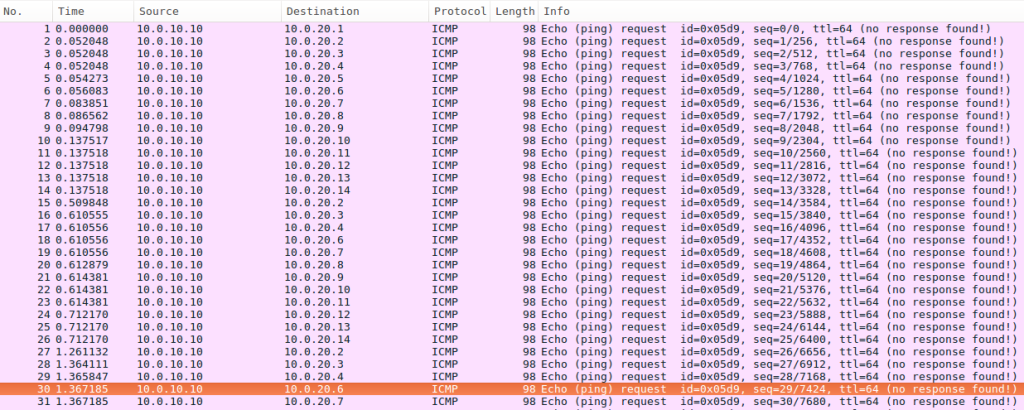
If we look at a packet capture of the ping scan, we see a lot of ICMP traffic to the remote network from our attack box (10.0.10.10). Unfortunately, due to the way I had the packet capture set up it didn’t seem to catch the return traffic.
A Note On Tools
It’s worth mentioning the tools I’ve used. The ‘arp’ command used to be pretty standard on Linux installations, it is a handy diagnostic tool. For Ubuntu, you may need to install the ‘net-tools’ package. For other distros, you might need to search out the relevant package.
Both the arp-scan and fping tools were available from the Ubuntu package manager and are likely to be available for most Linux distributions.
Instead of these tools, however, you could script something up to simply ping through every address in a given subnet. For local subnets, you can then look at the arp table after the ping scan and compare it to the output of the ping command to see if you can find additional hosts that might have been blocking ping traffic.
What About NMAP?
The tools we have used so far are pretty simple, they do what you expect them to do. They either generate ICMP or ARP traffic.
The nmap tool is a bit different. There are many more options and the way it works is not always intuitive. The behavior can also change depending on whether it is run with root privileges.
I’ll provide some further detail on using nmap for ARP and ping scans in a future post.
A Word Of Caution
Now that you may have found some new tools, I’d like to offer a word of caution.
Firstly, only run scanning tools on or against networks where you have permission.
Secondly, be careful with default settings and typos. You may not want to accidentally scan the entire Internet from your home or employer’s network.
Conclusion
Let’s return to the questions asked at the start of this post.
What is the difference between a ping scan and an ARP scan?
The difference is in how they discover hosts. Ping scans use ICMP messages and can be used on local or remote networks.
ARP scans use ARP instead of ICMP traffic, and can’t be used on remote networks.
Why might these two types of scans give different results?
When scanning local networks, host-based firewalls may block Ping or other ICMP traffic. ARP traffic is seldom blocked in this manner.
Overall, which tool to use will come down to your use case and what is likely to work best for you.